


Dropbox: Secure Cloud Storage
4.486.75K Reviews
App Specs
- Version
- 486.2.4
- Updated On
- License
- Free
- Downloads
- 1,000,000,000+
- Developer
- Dropbox, Inc.
- Categories
- Productivity
- Platform
- Android, iOS
Screenshots
 Analysis by AppCompare
When I use a cloud storage app, I want it to remove little hassles rather than create a new system I have to manage. Dropbox is most useful to me as a dependable place for files I need to reach from more than one device, whether that means a document for work, a set of trip photos, or something I need to pass to another person. It is a productivity app from Dropbox, Inc., and its appeal is less about novelty than about keeping everyday file handoffs straightforward.
What Dropbox is like to use now
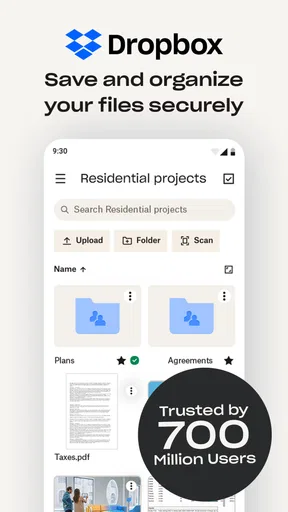
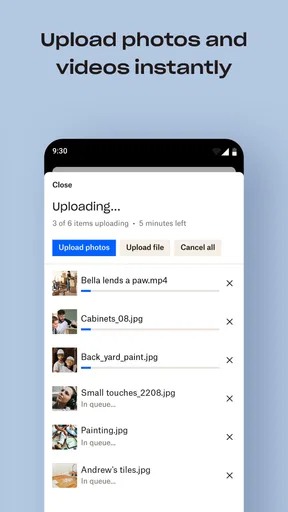
The mobile experience is built around finding, saving, and sharing files rather than turning a phone into a full desktop workstation. That distinction matters: I find it practical for checking a document on the move, sending a folder to a collaborator, or making sure a file is available before I lose connectivity. For extensive editing or reorganizing, I would still prefer a larger screen and the relevant desktop tools.
The app has been available since May 4, 2010, and its current version is 458.2.4. Those facts show a long-running product with ongoing versioning, but they do not tell me exactly what changed in the latest release. I would not assume a particular new feature from a version number alone. Existing users can reasonably expect the app to remain part of Dropbox’s broader file workflow, while checking the current app details before relying on a specific capability.
Guides and Analysis on Dropbox: Secure Cloud Storage
Who gets the most from it
I would recommend Dropbox to someone who moves between a phone and computer, regularly shares files, or wants one familiar place for documents and media. It is especially useful when a group needs to exchange files without making everyone adopt the same editing software. Students can use it to keep course materials at hand; freelancers can share project folders; families can pass around selected photos or videos.
It is less compelling if you only need a small, occasional backup and already use another cloud service that fits naturally into your devices. The free plan’s stated 2GB can be tight for people who want to store large video collections or keep years of phone photos online. Paid plans may suit heavier use, but the right choice depends on how much you store and whether the sharing and syncing workflow earns its place in your budget.
Everyday workflow and useful trade-offs
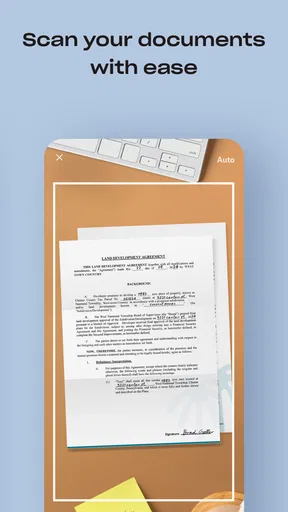
Here is a realistic use: I scan a receipt or save a project brief on my phone, put it in a clearly named folder, and open that same file later on a computer. If a colleague needs it, I share the item rather than creating another attachment that can become outdated. A simple naming habit—such as including a client or course and a date—makes this workflow much easier to search and maintain over time.
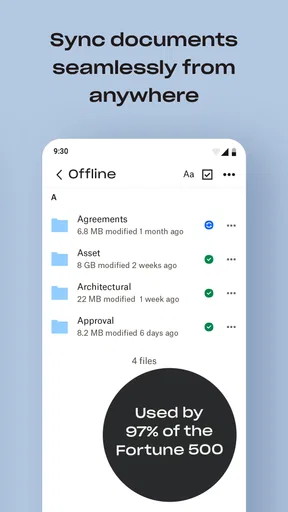
One practical tip is to be selective about offline files. Marking a document for offline access is useful before a commute, flight, or meeting in a place with unreliable internet, but keeping every large file available locally can use device storage. I would reserve offline availability for material I genuinely expect to need without a connection, then remove that setting when the task is finished.
Worth Reading Before You Choose

Basketball Stars: Multiplayer Is Fast, but Can It Recover When Matches Go Wrong?

WEBTOON Turns Phone Updates Into a Better Reading Routine

Link to Windows Runs on Shared Habits, Not Social Feeds

How Alibaba.com Dominates the B2B Marketplace

Metro's Quiet Rise: Redefining Mobile Communication

Harnessing Ecosystem Power with Phone Tracker by Number
Sharing also calls for a quick check before sending. A shared folder is convenient when people need continuing access to related material, while a single-file share is tidier for a one-off handoff. I make a habit of checking which item I selected and who should receive it; that small pause helps prevent accidental oversharing and avoids making a recipient hunt through unrelated files.
How it compares, and where it can fall short
Compared with the cloud storage already built into a phone or computer ecosystem, Dropbox’s clearest case is a workflow that crosses device brands or involves frequent sharing with people who use different setups. If nearly everything you do is tied to one ecosystem, its native cloud service may feel more convenient and may reduce the need to maintain another account. For a team that relies on shared folders and repeat handoffs, Dropbox can be the more natural fit.
It is not a substitute for a proper backup plan by itself. Syncing is convenient, but a file change can also propagate across devices; I would keep a separate copy of truly irreplaceable work rather than treating one synced folder as the only safeguard. Nor would I choose a general file-storage app as my main photo library if I want dedicated tools for browsing, organizing, and editing images. Dropbox is strongest when I think of it as a flexible file shelf, not as a complete replacement for every storage or media tool.
Costs, trust, and the decision to install
Dropbox is free to download, with in-app purchases listed from $6.99 to $299.99 per item. I would check the plan terms in the app before committing, then compare the storage allowance and sharing needs with what I actually use. The headline price alone does not tell me whether a plan is worthwhile: a person with a few documents may be fine without paying, while someone coordinating large projects may value the extra room and workflow.
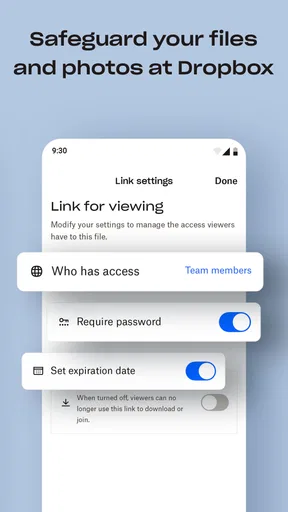
The app is rated for Everyone, and its scale is notable: it has an average rating of 4.4 from around 2.3 million ratings, with over 1 billion installs. Those figures suggest broad use, not a guarantee that every feature or plan suits every person. I would still review account and sharing settings carefully, especially when files contain personal, school, or work information. Dropbox’s security positioning is reassuring, but safe habits—strong account protection, deliberate sharing, and sensible copies of important files—remain part of the user’s job.
For me, the deciding question is whether I often need the same files in different places or need to hand them to other people. If yes, Dropbox can make those routines less awkward. If I only want an occasional backup, have little space to spare on my phone, or already rely comfortably on another cloud service, I would skip the extra account and keep my setup simple.
Have you ever found yourself drowning in a sea of files, wondering where on earth you saved that crucial document? Trust me, I've been there. That's where Dropbox: Secure Cloud Storage swoops in like a digital superhero to save the day. Let me take you through my experience with this handy app and why it might just become your new best friend for file management.
Getting Started with Dropbox
First things first, let's talk about setting up Dropbox: Secure Cloud Storage. It's a breeze. All you need is an email address, and you're good to go. Once you're signed in, you can start uploading your files. The interface is clean and intuitive, which means you won't need a PhD in tech to figure things out. Just drag and drop your files into the designated folders, and voilà, they're in the cloud.
Features That Stand Out
Now, onto the features that make Dropbox a standout choice. One of the coolest aspects is its cross-platform compatibility. Whether you're on your phone, tablet, or computer, Dropbox has you covered. You can access your files anytime, anywhere. It's like having your office in your pocket.
Another feature worth mentioning is the sync capability. You make a change on one device, and it automatically updates across all devices linked to your account. No more emailing files to yourself or carrying around USB drives like it’s 2005.
Collaboration Made Easy
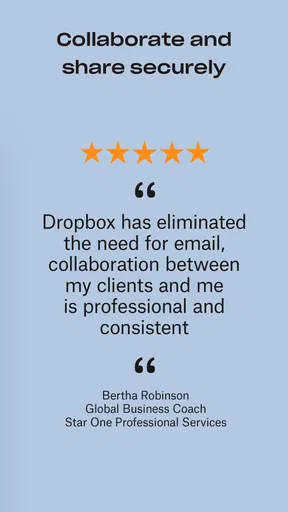
Working on group projects or sharing files with friends and colleagues? Dropbox's sharing features are a game-changer. You can easily share files and folders with others, and they don’t even need a Dropbox account to view them. Plus, with the commenting and editing features, collaboration is seamless. It's like having a digital workspace where everyone can contribute ideas in real-time.
And let's not forget about security. With Dropbox, your files are protected with strong encryption, both at rest and in transit. It’s reassuring to know that your sensitive information isn’t just floating around in the cyberspace without a safety net.
Storage Options and Accessibility
When it comes to storage, Dropbox offers several plans to fit different needs. The free plan gives you 2GB to play with, which is decent for light users. But if you need more space, their paid plans offer more generous storage options. And if you’re like me, constantly snapping photos and downloading memes, those extra gigabytes are a lifesaver.
Accessibility is another strong suit. The offline access feature means you can mark files to be available offline, so you can work on them without internet access. This is perfect for those long flights or coffee shop work sessions where Wi-Fi is spotty at best.
Final Thoughts
So, is Dropbox: Secure Cloud Storage worth it? In my opinion, absolutely. It’s not just a cloud storage service; it’s a productivity tool that can simplify your digital life. Whether you’re a student, a professional, or just someone trying to keep their digital life organized, Dropbox has something to offer.
With its user-friendly interface, robust security, and excellent collaboration features, Dropbox feels more like a necessity than a luxury. It’s the digital assistant I never knew I needed, and now, I can't imagine managing my files without it. So, give it a whirl, and let me know if it changes your file management game as much as it did mine.
Pros
- Easy file sharing and collaboration.
- Seamless integration with multiple apps.
- Automatic backup and sync features.
- Cross-platform compatibility.
- Generous free storage space.
Cons
- Limited offline access without premium.
- Advanced features require subscription.
- May consume significant device storage.
- Privacy concerns about data security.
- Occasional sync delays reported.
FAQs for Dropbox: Secure Cloud Storage
What is Dropbox and how does it work?
Dropbox is a cloud storage service that allows you to store files online and access them from any device with an internet connection. By installing the app on your devices, you can upload files to your Dropbox account, which automatically syncs across all your devices. This ensures you have the most recent version of your files wherever you are.
How secure is my data on Dropbox?
Dropbox uses strong encryption both in transit and at rest to protect your data. Files are encrypted with AES-256 bit encryption, and data is transmitted over a secure SSL/TLS connection. Dropbox also offers two-factor authentication for an added layer of security, helping to ensure that only you have access to your account.
Can I use Dropbox for free, and what are the limitations?
Yes, Dropbox offers a free Basic plan with 2GB of storage. This is suitable for storing documents and a small number of photos. However, if you need more space, Dropbox provides paid plans with larger storage capacities and additional features such as advanced sharing controls and priority email support.
How can I share files with others using Dropbox?
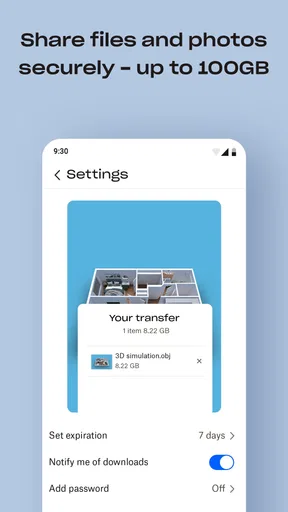
Dropbox makes it easy to share files and folders with others. You can generate a shareable link to send via email or messaging apps. Alternatively, you can invite specific people to access your files or folders. You can also set permissions to control whether others can edit or only view the files.
What devices and platforms are compatible with Dropbox?
Dropbox is highly versatile and compatible with a wide range of devices and platforms. It offers apps for Windows, macOS, iOS, and Android, and can be accessed through any web browser. This ensures you can manage and access your files from virtually any device, whether it's a smartphone, tablet, or computer.


